
Messages

Safe and Flexible Schoolwide Messaging
Messages is now available for ALL Seesaw Accounts.
Learn More About Messaging Features
Messaging Designed with Student Safety and Privacy First
SECURE
⚙️ Admins and teachers manage the student and family experience
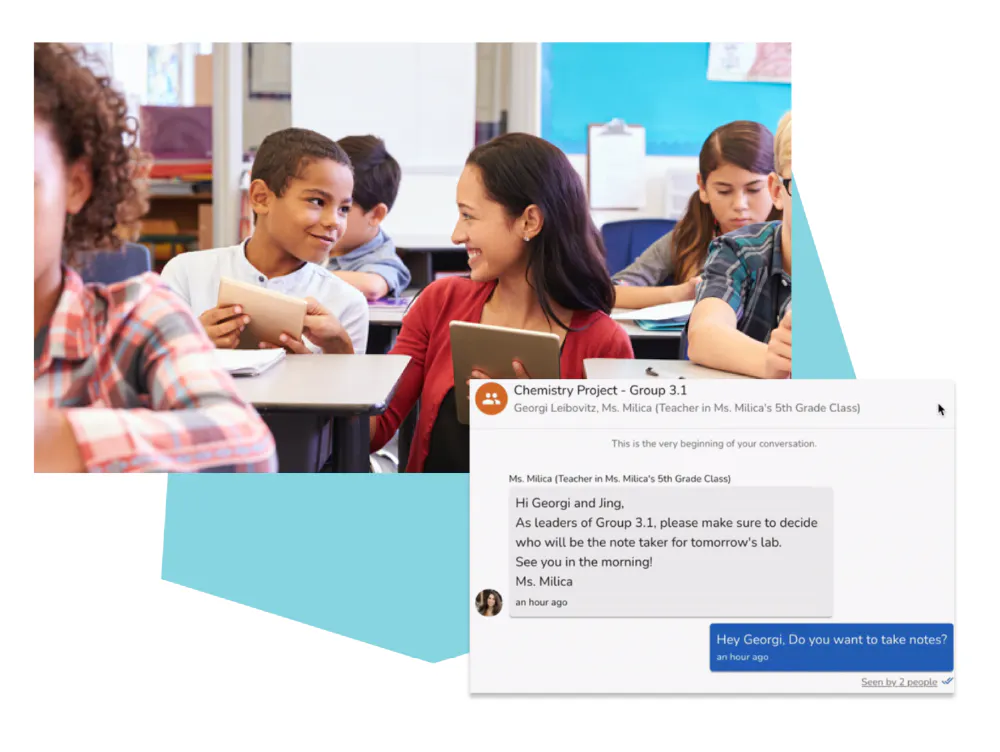
🔓 Students can only message each other when initiated and supervised by the teacher
ⓧ Recipients can be removed or blocked from messages at any time
Flexible Messaging for Any Group, Topic, or Occasion
EASY TO USE
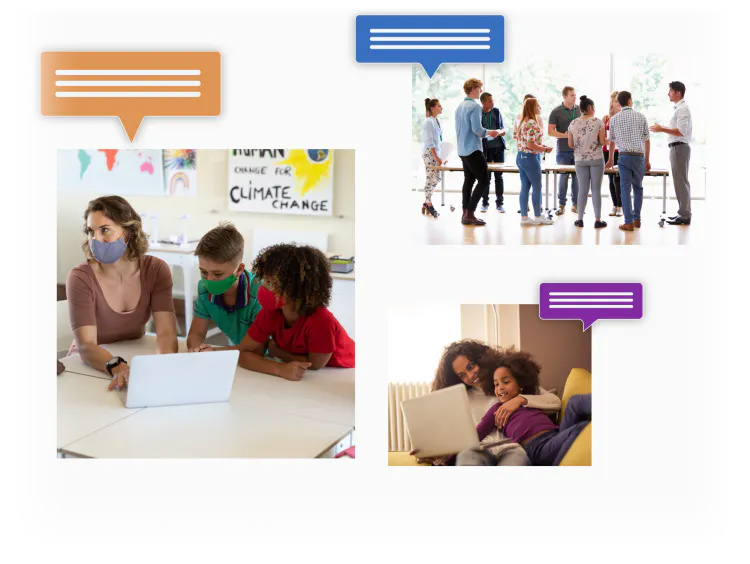
✉️ Start 1:1 messages, group conversations, or whole-group announcements
💬 Choose if a message is one-way or two-way
🔍 Use the search bar to quickly find recipients
Create a Culture of Participation Beyond the Classroom
COLLABORATIVE
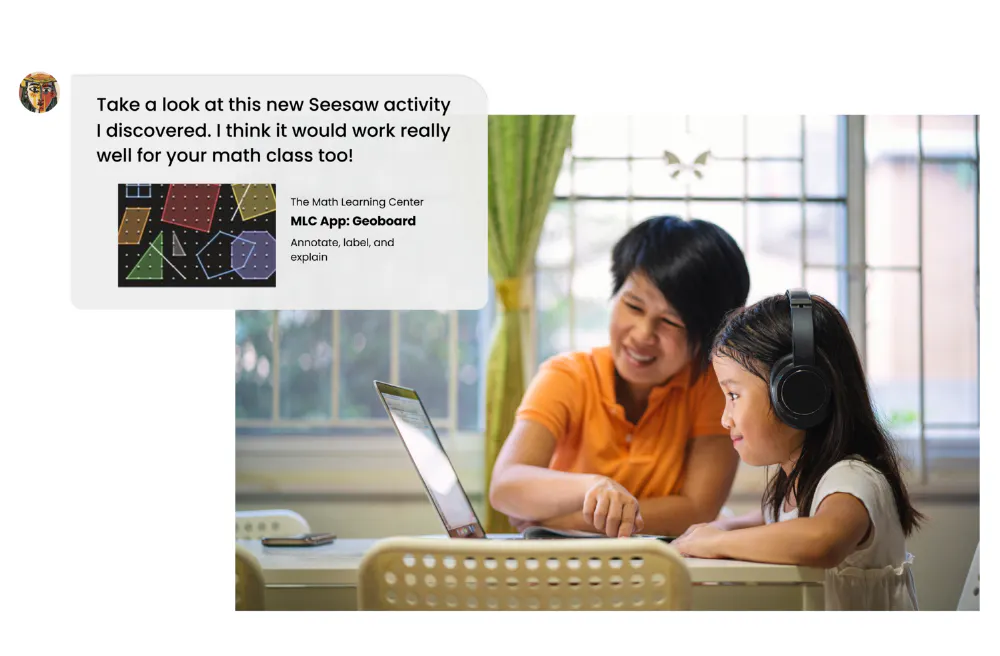
💡 Make it easy for teachers to connect and share resources
💬 Empower specialist teachers to message multiple classes at once
💛 Give students the ability to reach out to the teacher for help
Personalize Your Communications—and Reach Everyone
INCLUSIVE
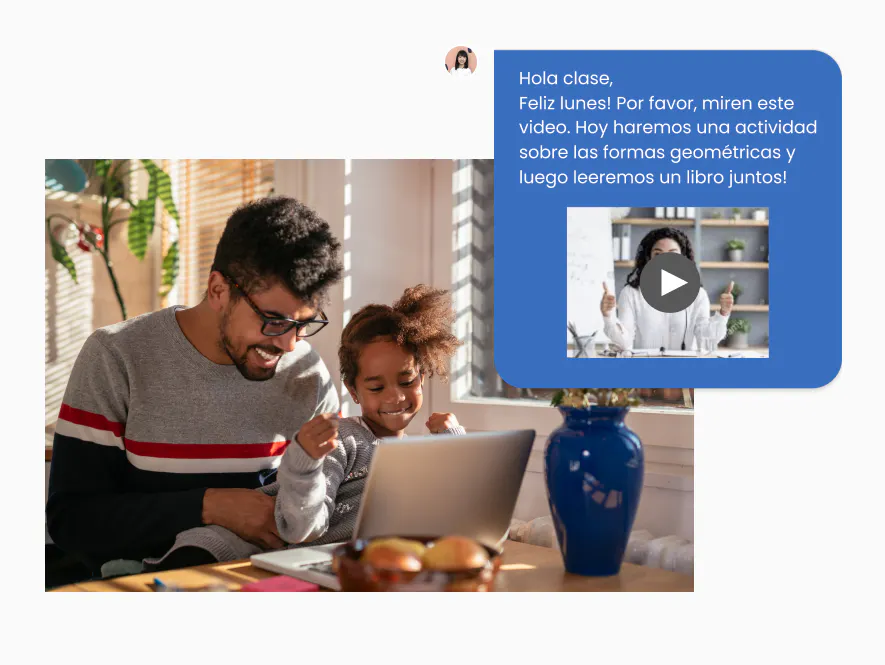
🎥 Send multimedia attachments with built-in photo, video, audio, and more
🌐 Translate all typed text in one tap
✓ View engagement with read receipts
Training
Get Started with Messages.
Messages for Administrators
Messages for Teachers
FAQs
Are all Messages features available for Seesaw Basic (free) classes?
- Because some Messages features are school-specific, Seesaw Basic (free) users do not have access to all features. Free users have access to:
- Teacher-initiated announcements to students and connected family members
- Teacher-initiated 1:1 and group conversations with connected family members
- Option to allow connected family members to start conversations with you, the teacher. Turning on this setting allows families to privately reply to Announcements. How to turn on the setting: In Class Settings under Families, click ‘Family messaging’ and turn ON ‘Families can start new conversations with teachers’.
- The following features are only available for Seesaw for Schools users, as they require school-level approval by an administrator which is only available for schoolwide subscriptions. The Seesaw Basic version of Messages does NOT include:
- Teacher-student 1:1 and group messaging
- Teacher-initiated student-student messaging
- Messaging other classes or groups within the school
- Schoolwide settings
- Whole school announcements
- Admin visibility into messages sent within the school
- What settings can I edit for each message? (Turn On/Off Replies, Label, Add/Remove Recipients)
- Can I hide messages I no longer need access to?
- Can family members reply to Announcements in a private message?
- Where can I find more resources for how to use Messages?
What settings can I edit for each message? (Turn On/Off Replies, Label, Add/Remove Recipients)
Did you know you can edit settings for each message? This gives you flexibility to communicate with any group, on any topic, and for every occasion.
Open a message and look to the top right to find the three dots […]. You’ll be able to edit:
- Label: Give the message thread a name to help you find specific threads quickly – especially helpful for custom group messages!
- Type: Turn On/Off replies by switching the message type at any time. Choose Announcement to disable replies, or choose Conversation to enable replies.
- Recipients: Click ‘+Add Person or Group’ to add recipients. To remove recipients, click on a recipient’s name (on mobile tap and hold) > the three dots > Remove.
Can I hide messages I no longer need access to?
Yes! Keep your inbox organized by hiding messages you no longer need to see.
Here’s how:
- Hover over a thread, click the […] three dots that appear
- Click ‘Hide message thread’.
- Need to see threads you’ve hidden? Use the filter at the top of your inbox and select ‘Hidden’.
Can family members reply to Announcements in a private message?
Yes!
Announcements are one-way messages, so recipients cannot reply to the group. Family members can reply to Announcements in a private message, if settings are enabled.
- Seesaw Basic (Free) users: In Class Settings, under Families, click ‘Family messaging’ and turn ON ‘Families can start new conversations with teachers’.
- Seesaw for Schools users: Your administrator needs to enable the setting that allows families to start conversations with the teacher.
Where can I find more resources for how to use Messages?
Our Help Center has helpful articles for administrators, teachers, and families.
Or, explore our Learning Hub with step-by-step pathways all about using Messages: