
Get Started with Seesaw

What is Seesaw?

Seesaw is a connected digital platform that supports instruction, assessment, and differentiation by enabling teachers to assign work, engage students, and provide feedback. Students and teachers use Seesaw to capture authentic learning as it happens, giving families a real-time window into the classroom to break down barriers for school-to-home communication.

* Teachers: don’t forget to bookmark this Get Started Page!

If you’re a Seesaw Admin, check out our Resources for Administrators page!

Step 1: Log In and Get Set up

  • First, go to app.seesaw.me, choose “I’m a Teacher”.
  • If your school/district purchased Seesaw: 
    • Just sign in with your email or SSO (your classes may already be set up!)
  • New to Seesaw? 
    • Create your free account or sign in to get started.
  • Creating a Class with a Free Account? 
log in screen for Seesaw app

Once you sign in for the first time, you will be prompted to complete your profile by selecting your interests, subjects, and school.

Step 2: Create your first post!

Having a post in the Seesaw Journal gives students and families something to engage with to build community from day one! 

Activity: Create your first post to the class journal using the green +Add button.

Add button

Tip: Watch this quick tutorial to create your first post.

Step 3: Launch Seesaw in your classroom!

Activity: Get students signed in and ready to create.

Choose your preferred student login method: QR Code, Email, Google, Microsoft, Clever, etc.

Need help? Visit the Help Center for support with student logins.

Download fun, helpful posters from our Classroom Printables collection to reinforce routines and expectations.

Step 4: Capture learning with the green +Add button!

Now that your students are signed in, let’s empower them to capture learning in the moment using the green +Add button!

Use the green +Add button for spontaneous creative expression, authentic student voice, and documenting everyday classroom snapshots.

Activity: Students use the green +Add button.

Add button

Start simple: Have students use the multimodal tools to introduce themselves!

  • Idea 1: Have students use the photo tool to take a picture of themselves. Then use the voice tool to share 3 of their favorite things.
  • Idea 2: Have students draw a picture of their favorite hobby or activity using paper, pencil, crayons, markers, etc. Have students use the photo tool to capture a picture of their drawing, and use the voice tool to share more about the hobby or activity they love.
  • Idea 3: Have students use the video tool to record an introduction of themselves.
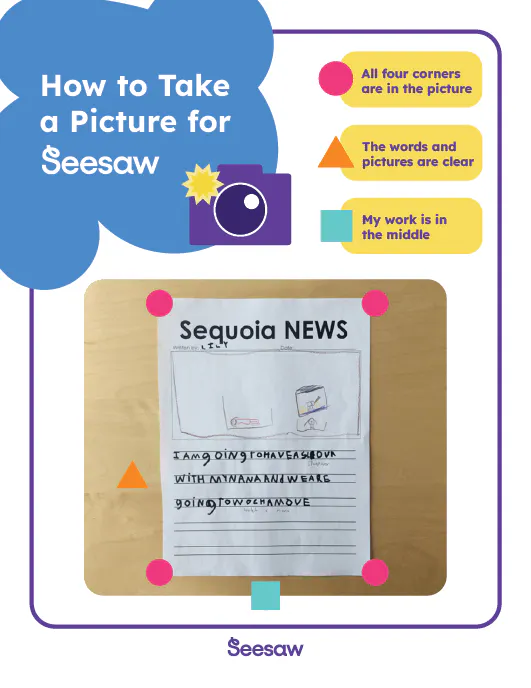
Tip: Use the How to Take a Photo for Seesaw poster to teach great photo-taking skills!

Check out this student facing video to introduce students to the green +Add button:

Step 5: Assign an activity!

Now that your students are comfortable creating in the moment with the green +Add button, let’s try a more structured approach by assigning your first activity!

Assign activities for structured lessons, standards-aligned instruction, and targeted feedback.

Activity: Assign this All About Me activity to familiarize your students with responding to an activity.

Check out the Lesson Plan for a version of this Activity in other languages!

Tip: use ‘Present to Class’ to demonstrate how students can respond to this activity


Assigning Lessons & Activities Tutorial
Learn how to Assign Activities like the All About Me Activity

Overview & Navigation Tutorial
Explore the Seesaw Library to discover more ready-to-assign, standards-aligned activities.

You can also explore the Community Library for free, vetted lessons from Seesaw educators.

Step 6: Connect with Families!

Activity: Bring families into the Learning Loop.

  • Easily connect families via email, SMS, QR code, or invite link.
  • Families see real-time updates, adding transparency and making families active members in their child’s learning journey.

Tip: Learn how to connect students and their family members with this helpful guide.

Ready to take it to the next level?

Type keyword to search